In only a few minutes you can setup HPE Aruba Networking Central NAC to allow anyone with an OpenRoaming profile to connect to your Wi-Fi network.
Central NAC will perform the Access Network Provider (ANP) role in the OpenRoaming ecosystem, functioning as a RadSec proxy for authentication to the user’s home Identity Provider (IDP).
This will be a short post because it literally took me five mins to setup and test this after hearing it is now possible.
When in Roam
I already had the Purple OpenRoaming profile installed on my phone, but any OpenRoaming profile will do.
If you’re an iOS user you can download the OpenRoaming App from the app store, or for Android you can connect with a native Google account profile straight from your device.
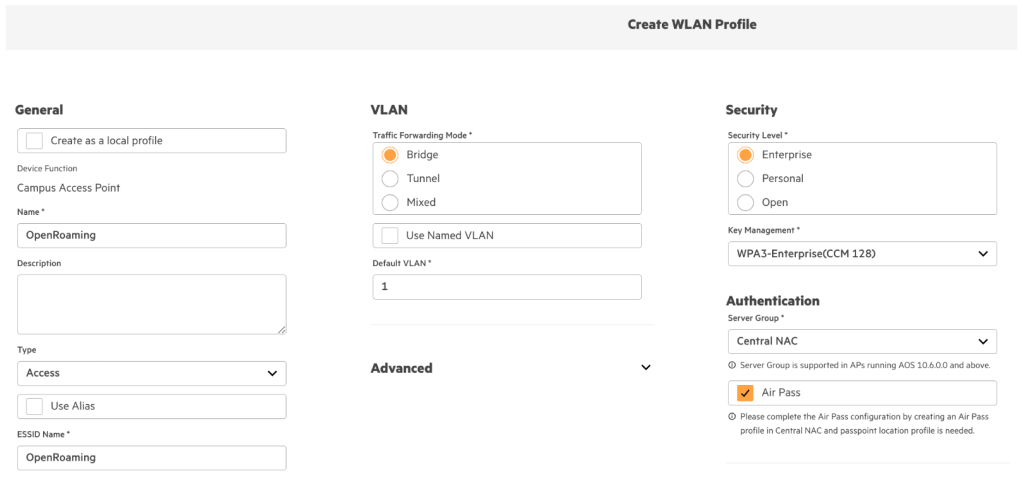
1. Create a WLAN Profile, the SSID can be called anything you like (literally that, if you want).
Pick WPA3-Enterprise (because friends don’t let friends configure WPA2-Enterprise), select Central NAC and check Air Pass.
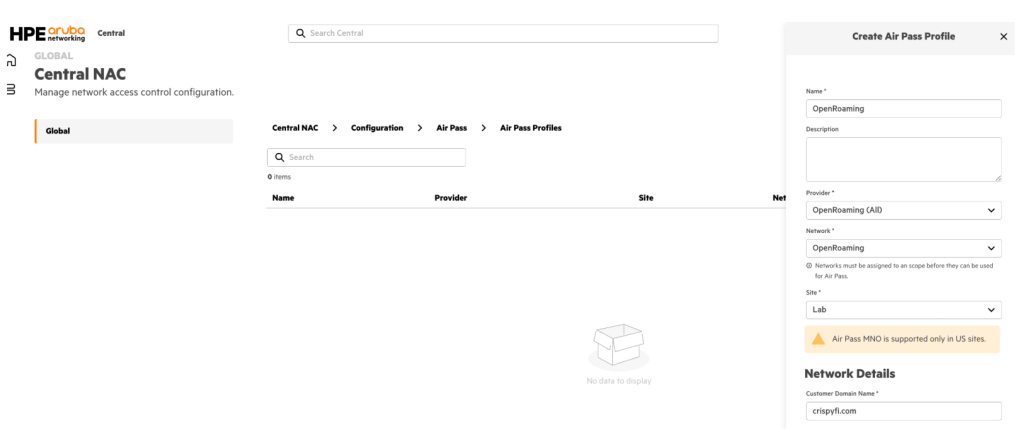
2. Like the small ‘i’ says, head over to Air Pass in Central NAC and create an AirPass Profile.
Select the built-in OpenRoaming (All) provider, select your Network and Site from the drop-down menu, enter your domain name, select site type and click Create.
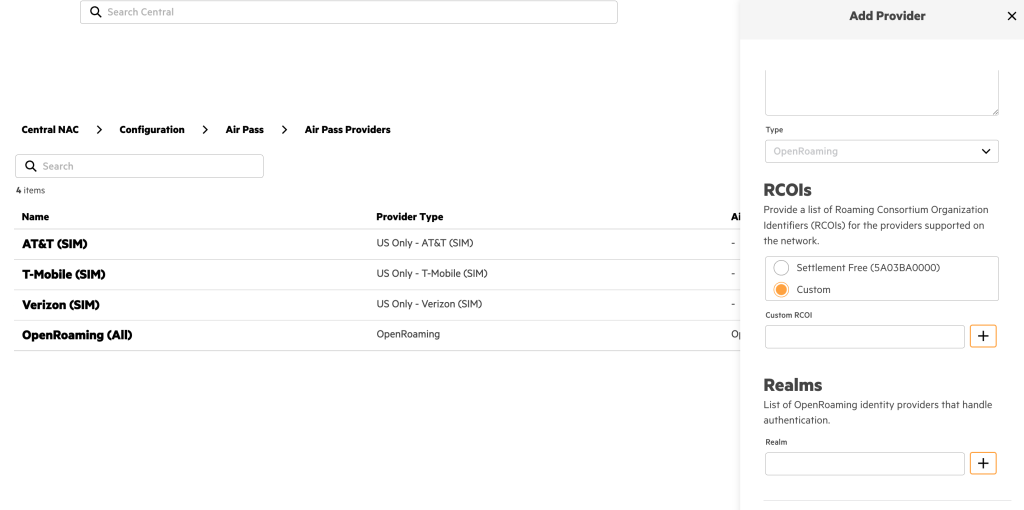
You can also create a custom Air Pass Provider with
You can also create a new Air Pass Provider with a custom RCOI and Realm list if you’d prefer.
3. And you’re done. I’ll have my beer back now thanks.
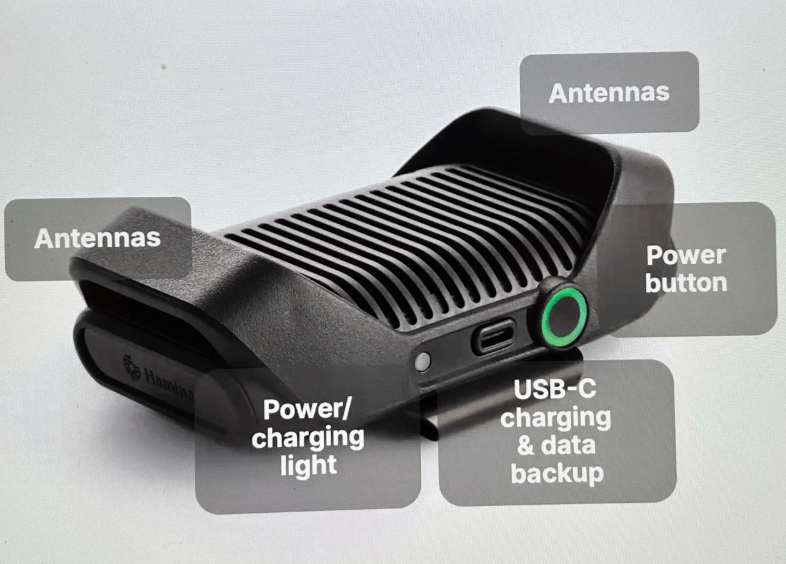
Do you remember the first time you used AirPods? The freedom from being tangled up or tied to your device was a game changer. I experienced that all over again when I tried out Hamina’s new survey device – the Clip.
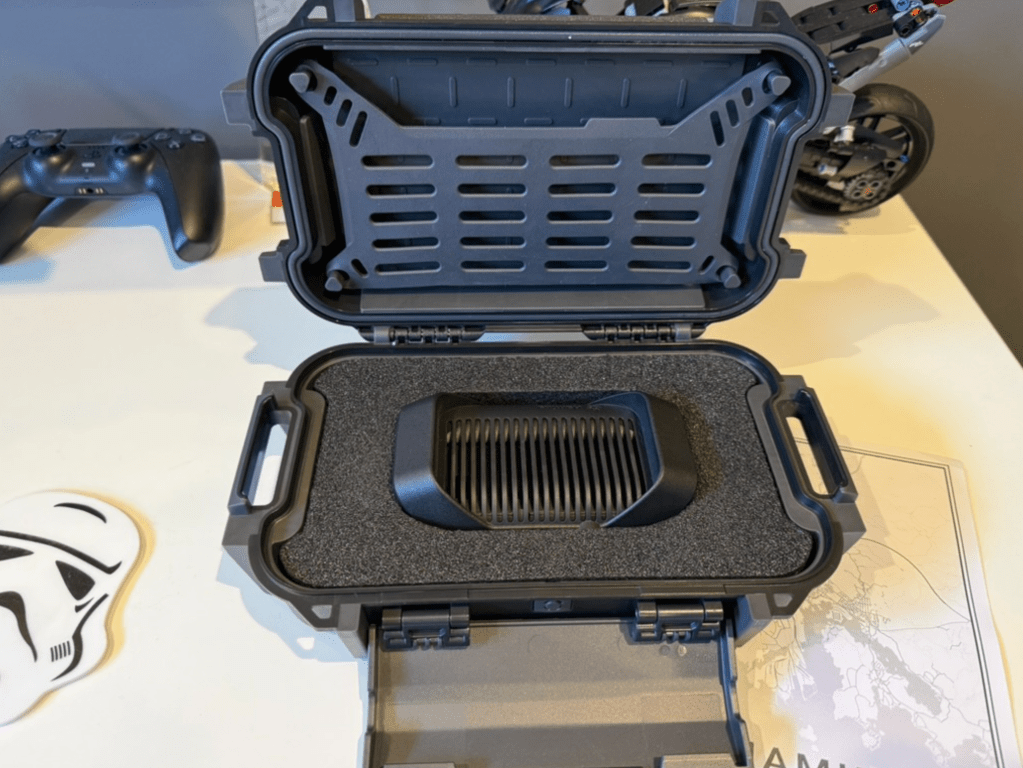
Christmas came quickly this year, since I was fortunate enough to receive a prototype version of the Clip to test, in a very shiny (sorry not shipping with the production version!) case.
Walk the Line
Surveying with the Clip is an absolute dream. It’s super light, so you quickly forget you’re wearing it, and thanks to Bluetooth data transfer to the Hamina Onsite App, there won’t be any cables in your way.
You might need to use a cable in very busy environments, but Onsite will let you know if data transfer over Bluetooth isn’t working so well. There is also a pretty slick data buffering mechanism when using Bluetooth.
My preferred survey approach is using an iPad + Apple pencil, rotating the device when I turn to keep the map facing the same way as I’m walking. Needless to say, having to periodically stop and untangle a cable is no longer required.
No more handbag?
The Clip isn’t designed to replace the Oscium Nomad, but in true Hamina style offer a more accessible alternative for those who don’t need every single feature.
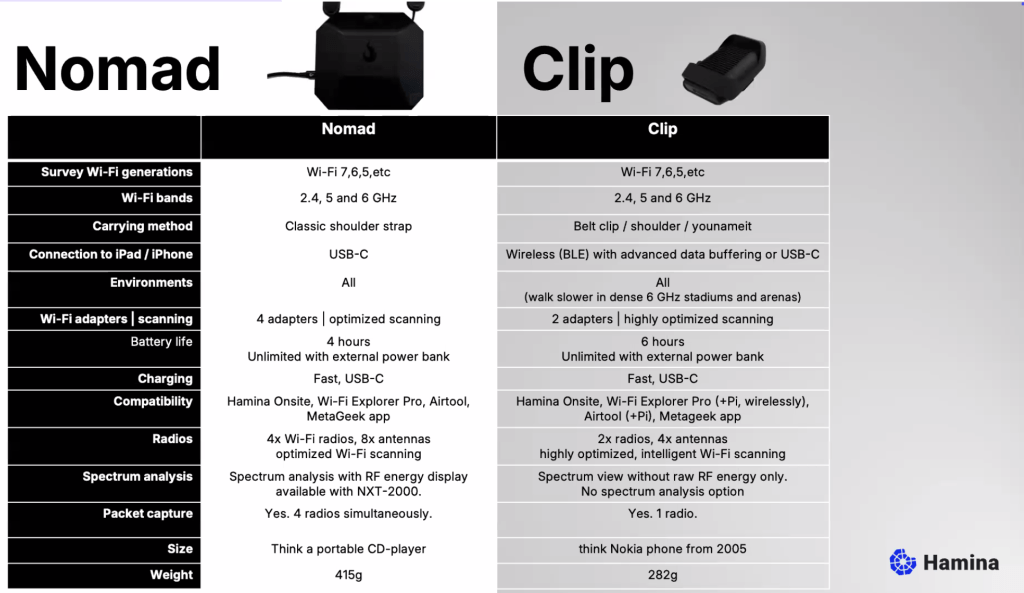
The full specs for both the Nomad and the Clip are below, but in a nutshell here are the main reasons you might choose to pack a Nomad:
When spectrum analysis is required
In very busy environments, e.g. large public venues and you’d prefer to walk a bit faster than you’d otherwise need to
When you need to run a multi-radio packet capture
You prefer the old school look and love it when people ask you ‘what’s with the handbag?’
Otherwise it is safe to say that the Clip could permanently live in your everyday bag.
Radio Gaga
It’s worth pointing out that although the Clip has half the number of radios and antennas, it is by no means half as good. The product itself was born out of the fact that if you perform scanning efficiently, you don’t need more than two radios most of the time.
The Clip will also certified to perform transmit functions for things like Orb testing.
These are a few of my favourite things
To wrap up, here are the things I love the most about the Clip:
Cable-less surveys
Form factor
Packet captures without disturbing your device’s Wi-Fi connection with AirTool
If you operate a network that offers free public access, please consider enable OpenRoaming as another way to connect. You can learn more about OpenRoaming itself here. It is hands-down the BEST way to offer fast, frictionless, free and secure Wi-Fi for users.
In an effort to accelerate global adoption of OpenRoaming, Purple is has recently started offering it as part of their free subscription tier for any business to use.
Advertise an OpenRoaming capable SSID, using Purple’s authentication servers (Purple is performing the ANP function).
Provision your device with an credential profile allowing it to connect to OpenRoaming networks all over the world (Purple is performing the IDP function).
Access Network Provider (ANP) setup
If you want to support OpenRoaming, here’s what you need to do:
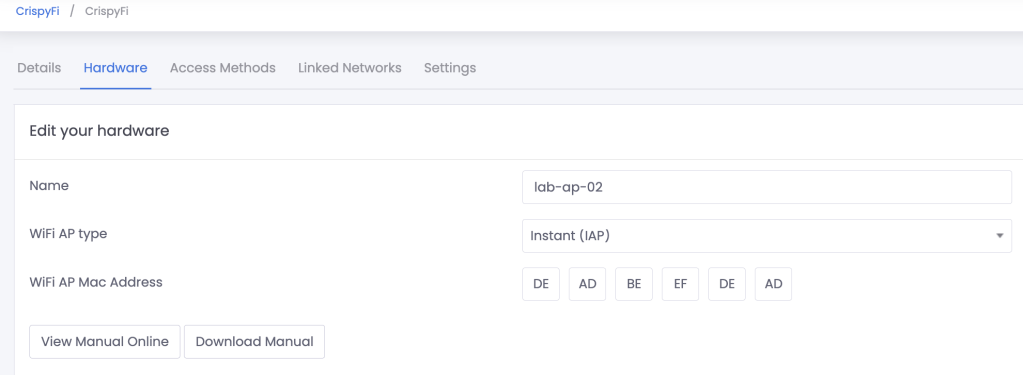
4. View the manual and follow the instructions for ‘PurpleConnex’ (the Purple app which supports OpenRoaming)
To summarise, you need to configure:
An SSID that supports WPA2/3 Enterprise authentication
Hotspot 2.0 / Passpoint configuration with Purple’s NAI Realm and EAP configuration
Purple authentication servers using RadSec
Enable RADIUS Accounting
Include the AP’s MAC Address as Called Station ID
Purple’s RadSec Server Root CA certificate (this wasn’t in the HPE Aruba instructions, but necessary)
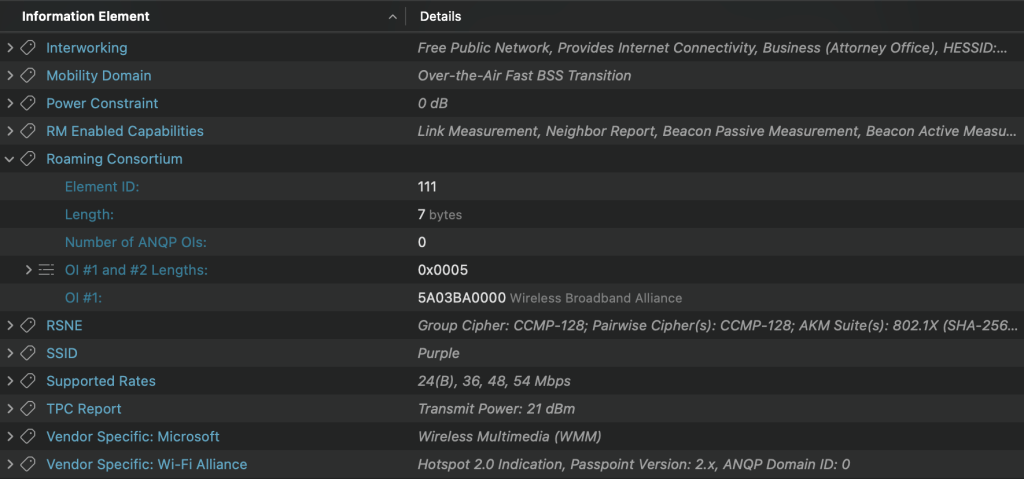
Once configured, any OpenRoaming device that is configured to use either of the below RCOIs will be able to connect!
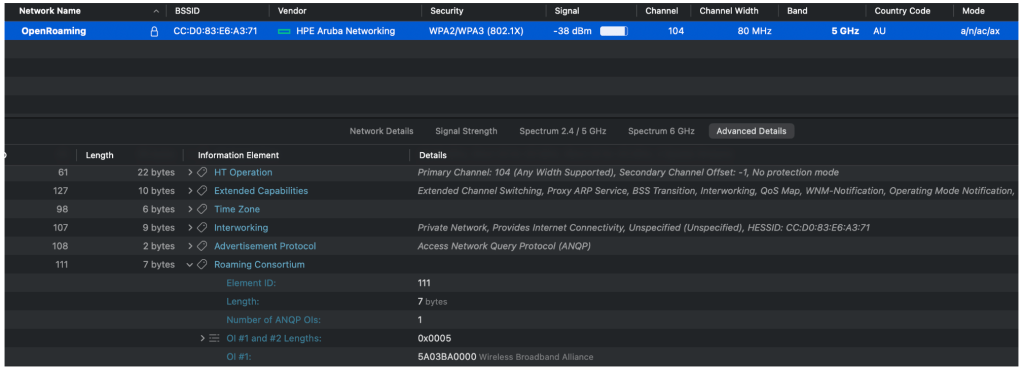
Here is what my test SSID looks like:
Using Purple credentials to connect to an existing OpenRoaming network
If you want to provision your device using Purple as an IDP to connect to an existing OpenRoaming network, here’s what you need to do:
Download the PurpleConneX app on your device
Create and login with a free account
Accept the prompt to add a new network profile to your device
Your device will then automatically connect to any SSID that advertises the WBA RCOI (5A03BA).
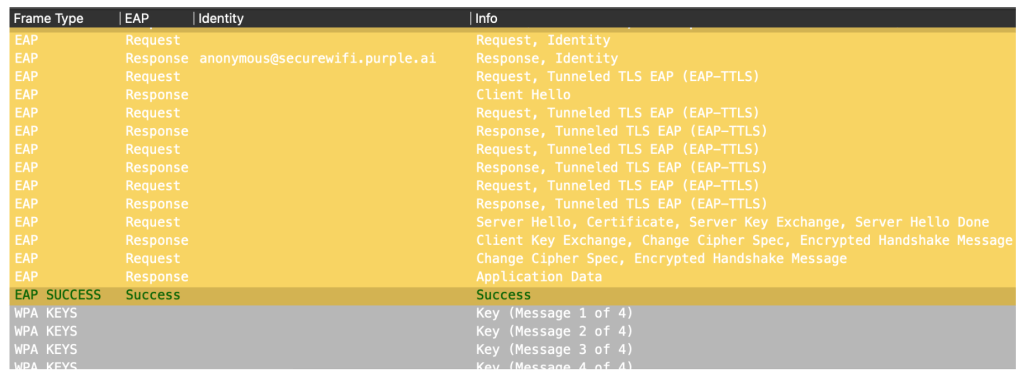
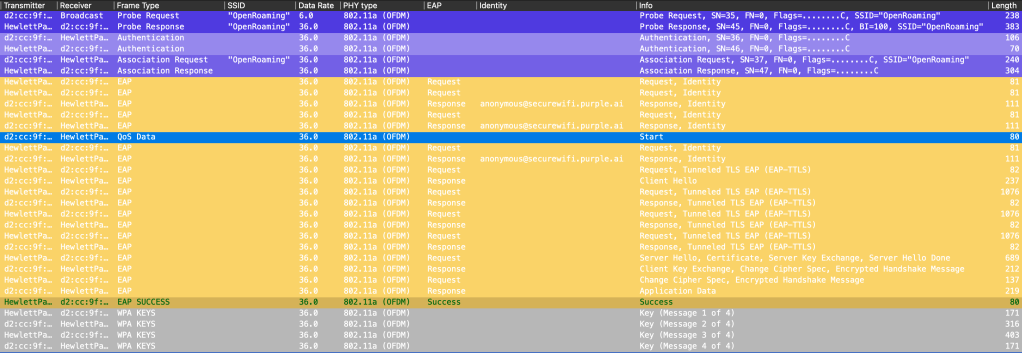
Here is a packet capture showing a PurpleConneX provisioned device connecting to an SSID using the WBA OpenRoaming RADIUS test server.
Challenge to networking vendors
Purple have made the first move by offerring OpenRoaming for free.
I believe all cloud managed networking vendors should offer a drop-down option to enable OpenRoaming on an SSID with a hosted RadSec Proxy / ANP for no additional licensing cost.
Also Apple and Microsoft, please include device native OpenRoaming functionality as an option to use the account that is signed into the device. This is already possible with a Google account on Android.
Only when OpenRoaming is free for users, simple for administrators to deploy, and simple to use will we see the uptake of this awesome technology.
In case you were wondering, this is a post about HPE Juniper Networking’s Cloud NAC offering – Access Assurance. Great, now that’s cleared up, on with the post!
The way things were
For most of the ClearPass deployments I’ve been involved with in the last few years, the requirements for wireless have been pretty simple:
In order to meet this requirement, I’d typically configure:
TEAP with chained EAP-TLS to authenticate Windows devices and users, and plain EAP-TLS for other OSs.
Entra ID and Intune API integration for authorization.
Intune configuration payloads including where to enrol for a certificate from a suitable CA, whether it be ClearPass Onboard, SCEPman, SecureW2, NDES, or ADCS with a certificate connector.
Anyone for a SNAC?
With the trend towards SaaS for everything else, what about NAC? (SaaS NAC = SNAC?) you heard it here first folks, Gartner eat your heart out 😛
HPE Networking have Aruba and Juniper Mist flavoured ‘SNAC’s which are rapidly growing in functionality, and are respectively:
Central NAC
Access Assurance
There were two features in particular which compelled me to spin up a demo of Access Assurance:
PKI with SCEP integration
TEAP
To the lab!
Any good lab work should start with a hypothesis (or so primary school science taught me).
Mine was this: A SaaS NAC should be able to replace an on-prem NAC for most customer’s wireless needs.
(By the way, this blog post isn’t intended to be a deployment guide, but rather to highlight key functionality that might help you decide whether or not to deploy Access Assurance, based on my experience).
Here are the key features of Access Assurance:
OAuth IdP integration for group based authorization
MDM integration for compliance checking
PKI which can be integrated with Intune or Jamf Pro for issuing certificates to managed devices
Support for TEAP (basic for now)
Support for non-Mist devices with use of a Mist Edge (RADIUS Proxy – licensed separately)
IdP SSO integrated portal to provision unmanaged devices with a certificate
Supports ‘BYO’ Client Root CA and Server Certificates if you want to use it with an existing PKI
Competitive license pricing, counted on concurrently connected users (not seats)
Keep it Simple
The first thing I noticed is how simple everything is. A lot of the nuts and bolts have been hidden under a layer of goldilocks-level abstraction.
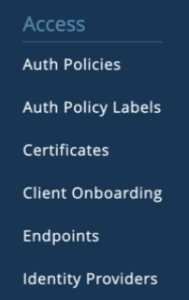
Everything that you need to configure for the NAC itself is done from this humble menu.
In no particular order, here is a quick tour:
Identity Providers
Setup your IDP using OAuth after first creating an Entra ID App Registration with the appropriate permissions and Client Secret. This will allow you to perform group lookups for authorization.
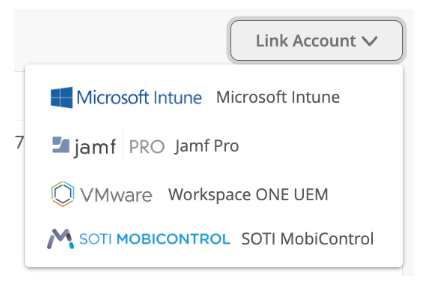
Next, link your MDM of choice for compliance checking.
If you’re signed into your Azure Portal account with the correct permissions, linking your Intune account is as simple as approving access to a pre-canned service.
Other MDM options are available too:
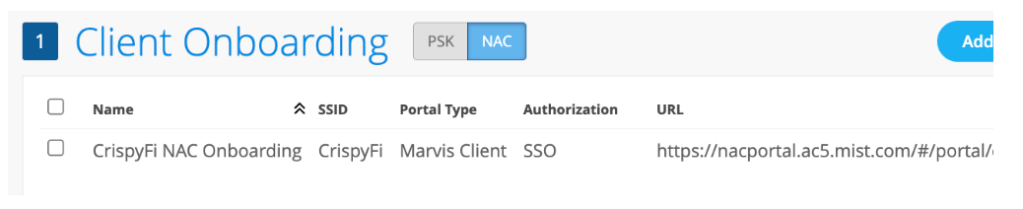
Client Onboarding
If you have unmanaged devices that you want to deploy a certificate and Wi-Fi configuration profile to, you can create a NAC Onboarding Portal, complete with SSO using SAML against your IdP of choice.
There is even a pre-built Entra ID Enterprise App for the SSO bit:)
You need to install the Marvis App on your OS of choice for this to work.
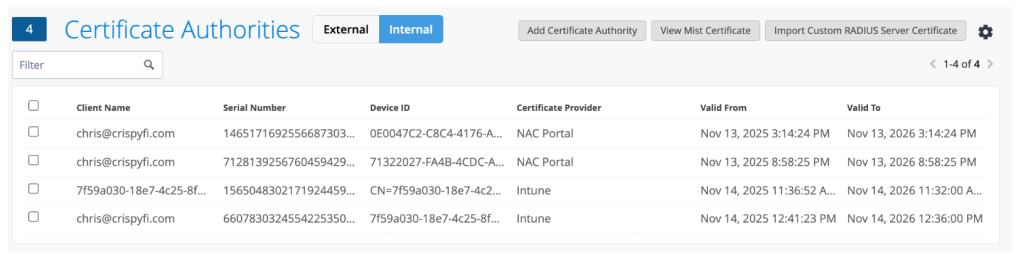
Certificates
On the Internal tab you can view all of your issued certificates.
You can upload your own CA certificate, in case you issue client certificates to your devices from another CA. You can also upload your own RADIUS Server certificate as well if you’d prefer to use your own PKI entirely.
If you’re sticking with the Mist CA, you can download the CA certificate that sits above the RADIUS Server Certificate in the chain of trust, for deploying to your devices via Intune.
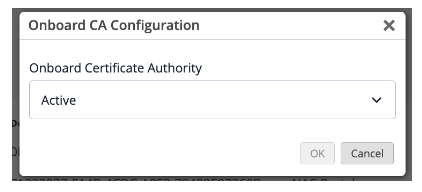
Enabling the CA couldn’t be simpler, you just choose ‘Active’ from the drop-down menu accessible from the gear icon.
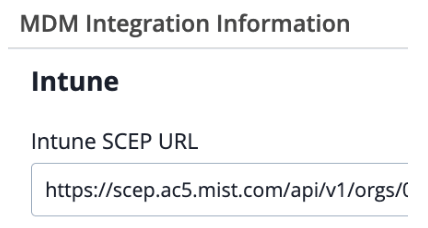
You can also view the SCEP URL for integration with Intune or Jamf Pro, and download the Onboard CA Certificate, for deploying to your devices.
Auth Policy Labels
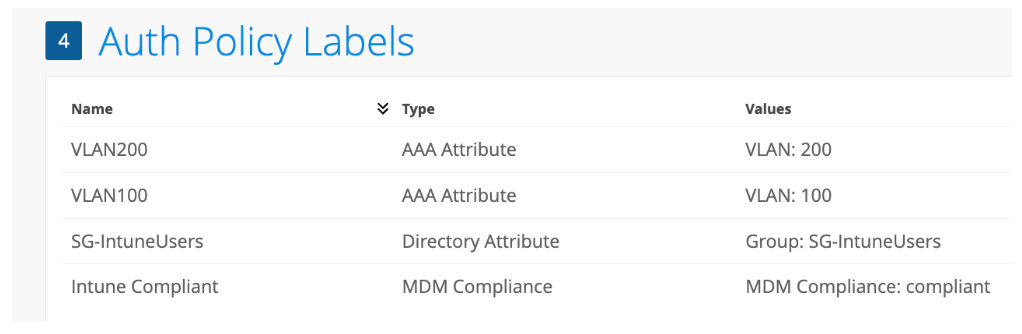
Auth Policy Labels are the building blocks for your policies.
They can be used either as match criteria (e.g. Entra ID Group) for a particular rule, or as an action to take after authentication (e.g. Assign a particular VLAN ID).
Auth Policies
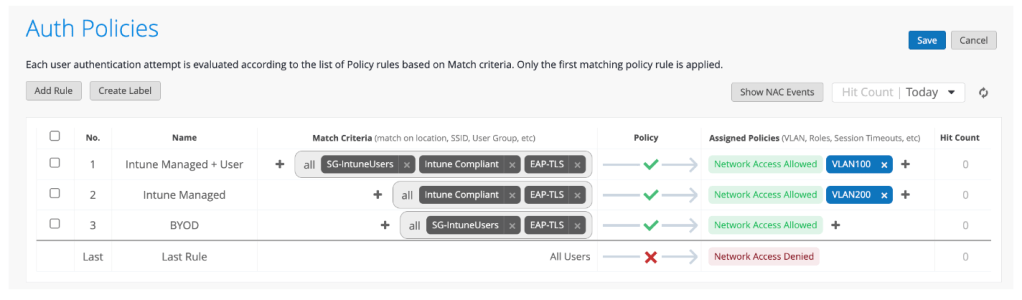
This is about as simple as it gets.
My list of policies is as follows: 1) EAP-TLSUser authentication with Entra ID Group and Intune Compliance authorization 2) EAP-TLSDevice authentication with Intune Compliance authorization (i.e. Windows logon screen) 3) EAP-TLSUser authentication with Entra ID Group authorization (for a Marvis Client enrolled device)
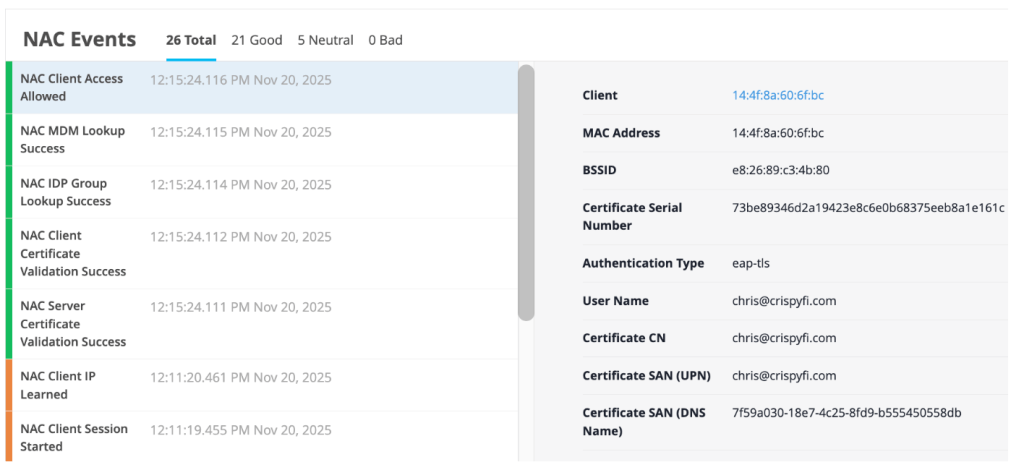
NAC Events
Logging is pretty simple but perfect for troubleshooting policy or client configuration issues.
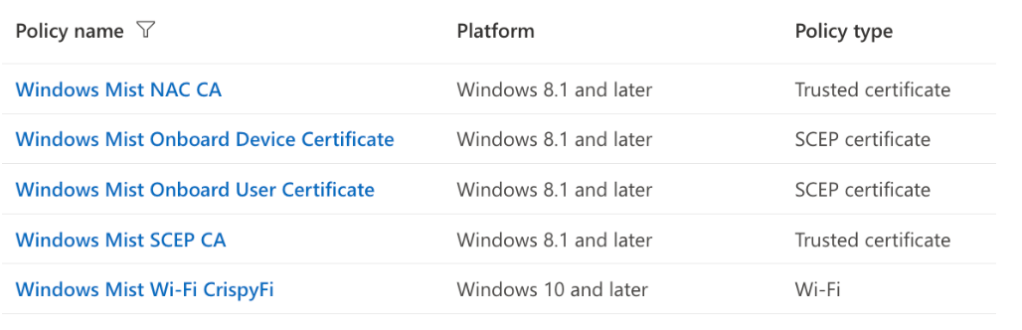
Intune Configuration Profiles
Worth mentioning of course are the various configuration profiles that need to be created in Intune for a complete solution.
Mist opportunity?
Since I only (currently) have Aruba APs in my lab, I thought there would be no way to test Access Assurance with getting hold of a Mist AP first.
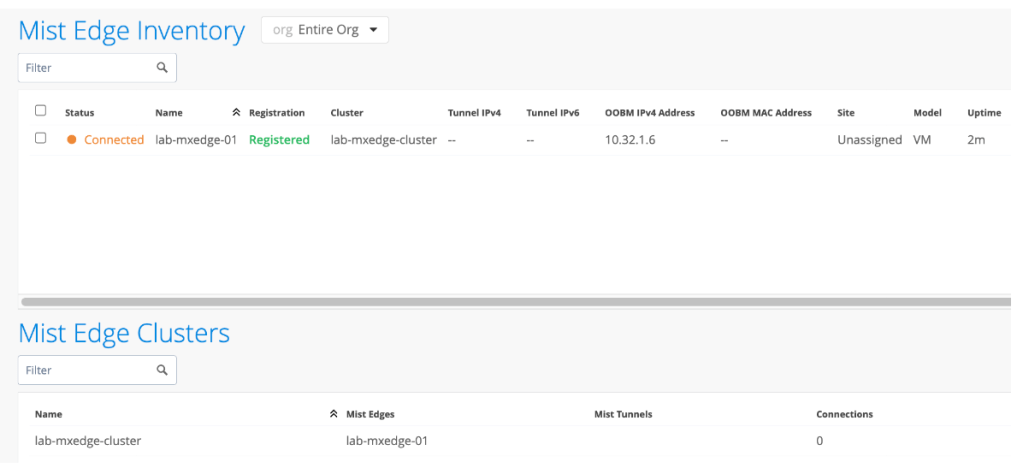
I was wrong. Under the hood, Access Assurance only accepts RadSec (RADIUS over TLS) connections from Mist devices, but this also includes Mist Edge virtual appliances.
Although licensed separately, you can quite easily spin up a Mist Edge VM to accept regular RADIUS traffic and proxy it to Access Assurance using RadSec.
A little bit of Azure lab credit later, I was well on my way.
All I had to do in HPE Aruba Networking Central was add the IP address of the Mist Edge appliance as a RADIUS Server in my SSID config.
TEAP
As I mentioned, my go-to for Intune managed Windows device authentication is TEAP with EAP-TLS.
I tried to setup a basic set of policies which treated a user + computer authentication differently to a computer only authentication (e.g. Windows device at logon screen).
For now, computer only authentication only is not supported. So we’ll have to use regular EAP-TLS.
Closing Thoughts
So what about my hypothesis? Can a SaaS NAC replace an on-prem NAC for most customer’s wireless needs? The answer is almost.
For what I personally configure, once TEAP support is feature complete and if TEAP & SCEP cross-pollenate over to Central NAC 😉 that will cover most wireless deployments.
Wired is a different story – I’m yet to put Central NAC or Access Assurance through its paces for a ‘Colourless Port’ deployment with profiling, although with the recent enhancements to the AI based client profiling (had to get the buzzword in at least once) I can’t imagine a robust solution will be far off, if not already here.
In the meantime, if you’d like to try Access Assurance yourself, reach out to your local SE and check out the Access Assurance Guide.







 CrispyFi Blog