Now It’s Personal: HPE Aruba Networking Central’s new Personal Wireless Network feature

Overview

Personal Wireless Networks are a new addition to the HPE Aruba Networking Central Cloud Auth feature set.

In a nutshell, they provide a way to segment a network on a per-user or device basis, without requiring certificates.

User experience

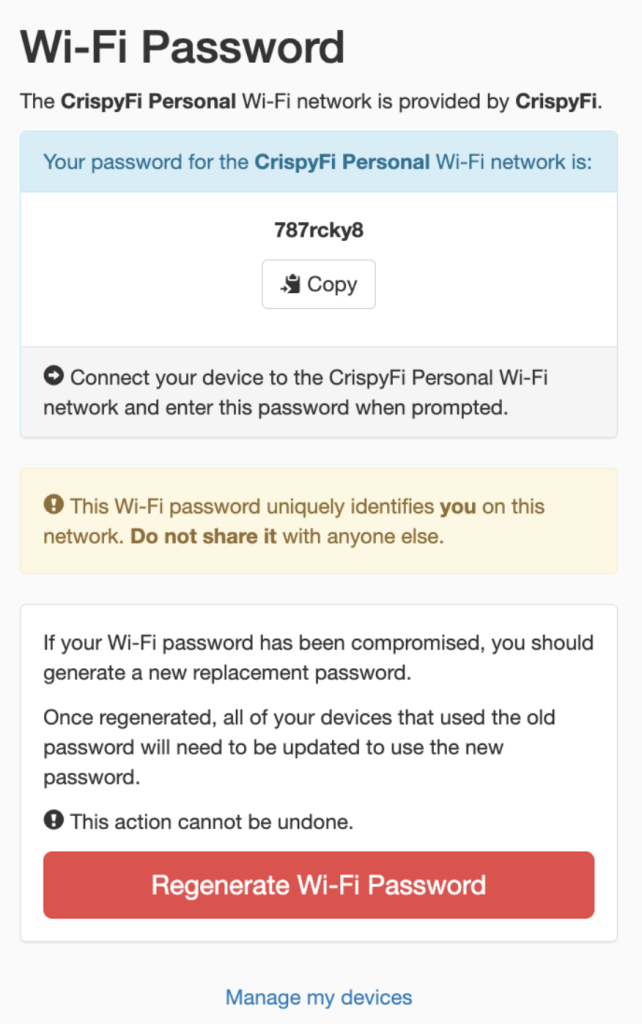
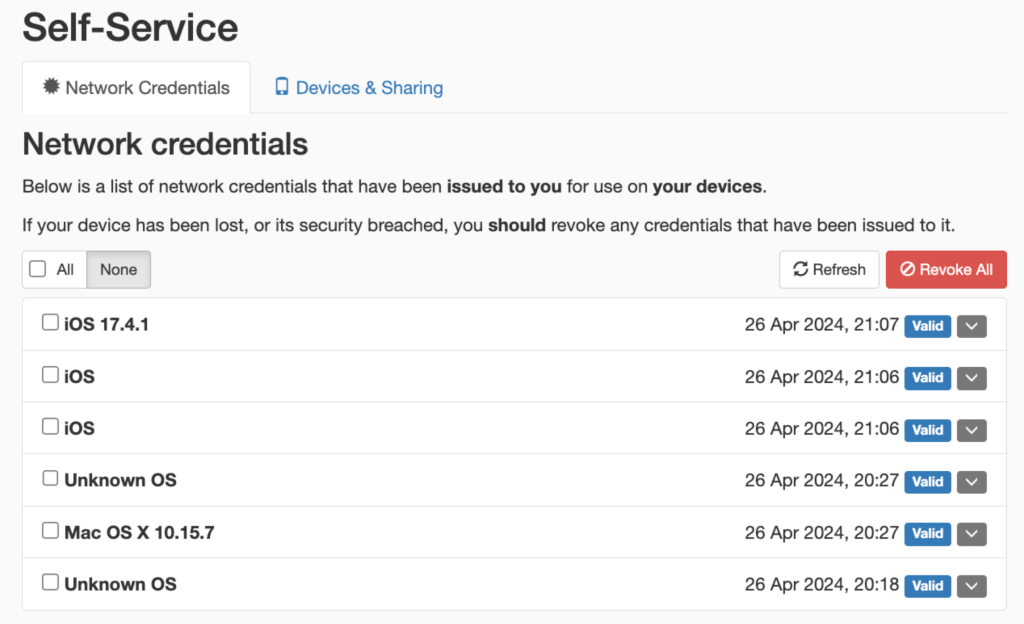
Users can access a self-service portal where they can login using SSO and obtain a pre-shared key to connect all of their devices to a Wi-Fi network.
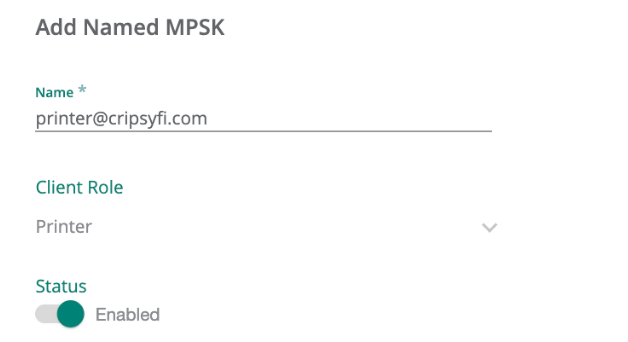
For devices that don’t belong to an SSO enabled user, administrators can manually add a PSK and assign a Client Role, which supports a combination of Access Rules and VLAN assignment.
Traffic between devices using the same pre-shared key is permitted, with traffic between devices using different pre-shared keys is denied. Think private VLANs for Wi-Fi.

In my lab, I was able to verify this behaviour with a simple ping test between devices associated to different users.

Who can use it

There is a long list of use cases for this type of setup, but the most relevant are:

  • BYOD, especially when devices don’t support certificate authentication
  • Tenanted buildings (e.g. Retirement villages, university dorms)
  • Headless or IoT devices

Why this is so cool

This is an awesome solution for a number of reasons:

  • Devices are associated with a user for added visibility and control (i.e. logging and user off-boarding)
  • Roles can be assigned based on Group membership from the chosen Identity Provider
  • Cloud native solution with no additional licensing required
  • Uses RadSec (RADIUS over TLS) for secure operation over the public Internet
  • Not tied to device MAC address (no issues with MAC randomisation or iCloud Keychain)
  • Setup can be done in a matter of minutes
  • AirGroup can be used to share mDNS and DLNA servers between users, or by designating a server as publicly accessible (e.g. a printer that supports AirPrint)
  • Look Mum, no certificates!

Things to keep in mind

  • Based on WPA2, there is not yet a way to achieve this sort of functionality with WPA3-SAE key management.
  • While there is Authentication and Authorisation for the self-registration portal, there is effectively only ‘identification’ and no ‘authentication’ of the user when devices connect to the network, since the PSK could used on any device.
  • It’s worth mentioning that Cloud Auth supports an SSO-fronted self-registration portal for certificate enrolment against a per-tenant CA hosted in Central. This provides actual authentication and better security, with the tradeoff of a slightly more involved onboarding process.

What you need to make it work

  • An HPE Aruba Networking Central account
  • An Access Point running at least ArubaOS version 10.6.0.0
  • An Identity Provider (e.g. Microsoft Entra ID)

Setting it up

If you want to try this out in your environment, feel free to follow along with my simple step by step instructions. I make labbing FUN!!

(I’m using Microsoft Entra ID as my Identity Provider)

  1. Create a new App Registration

To begin, draw an S create a new App Registration, grant the following Microsoft Graph API permissions and create a new Client Secret. Don’t forget to record the value and put it in your password manager of choice.
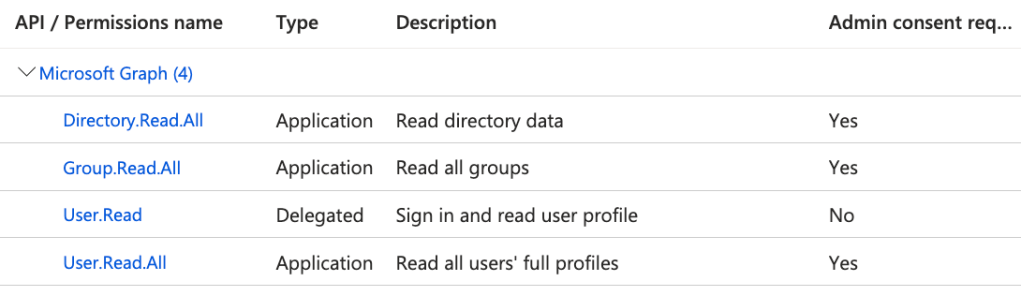
If you get stuck, follow the Aruba quick start guide for Microsoft Entra ID here: https://www.arubanetworks.com/techdocs/central/latest/content/nms/policy/ca-azure.htm

2. Create a new WLAN

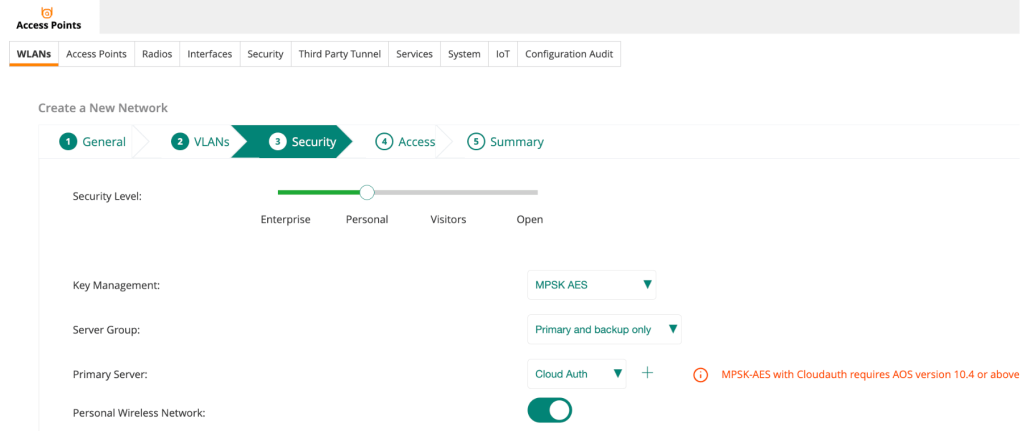
Create a new WLAN under your desired Group with the following Security config:

  • Security Level: Personal
  • Key Management: MPSK AES
  • Primary Server: Cloud Auth
  • Personal Wireless Network: Enable

3. Configure Central User Authentication

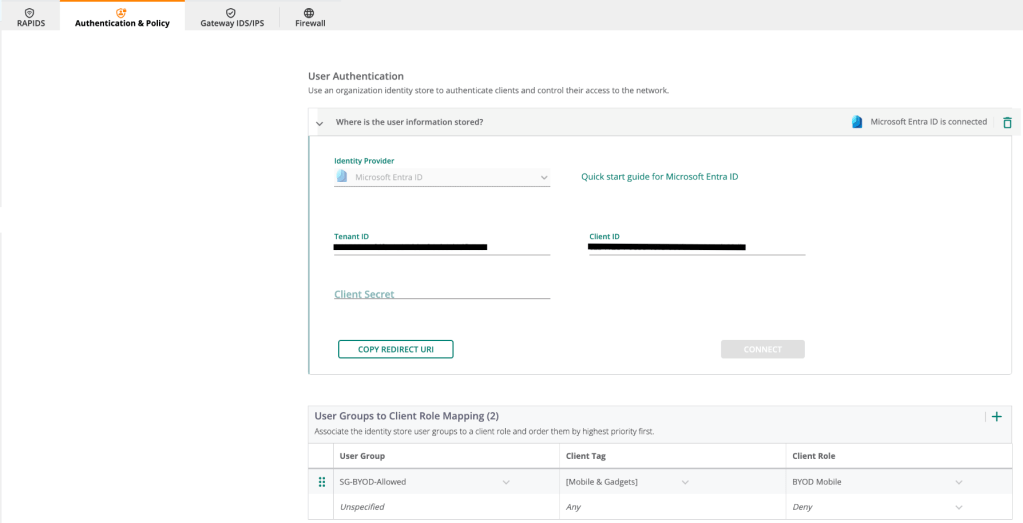
Login to Central, navigate to Global > Security > Authentication & Policy > Config and Edit the User Access Policy.

Select Microsoft Entra ID as the Identity provider and populate the info from your new App Registration.

Copy the Redirect URI and enter it under Authentication in the App Registration.

Click Connect and you should be able to find and select a user group from Entra ID, filter on a specific Client Tag, and assign a corresponding role.

Click Save when you’re done.
4. Configure Central User Authentication

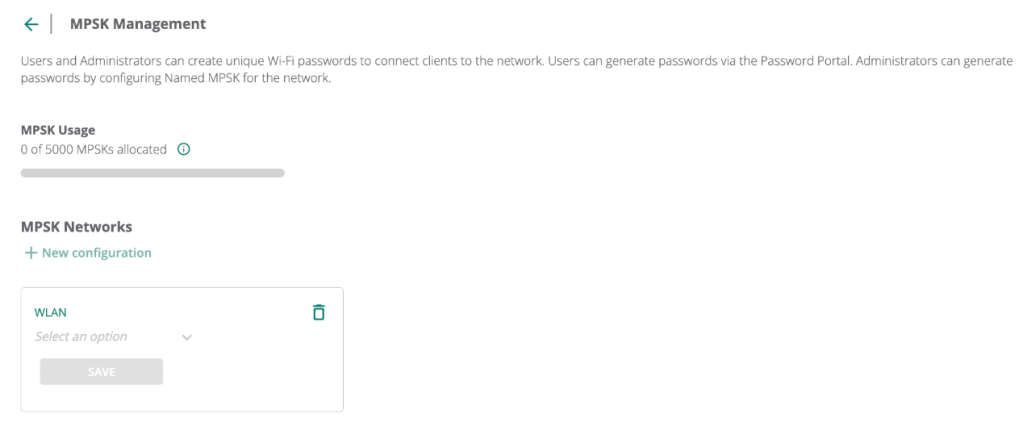
Click Manage MPSK, select the WLAN you recently configured and click Save.

5. Register a device

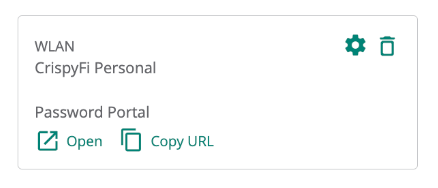
Open the Password Portal link and sign-in using SSO.
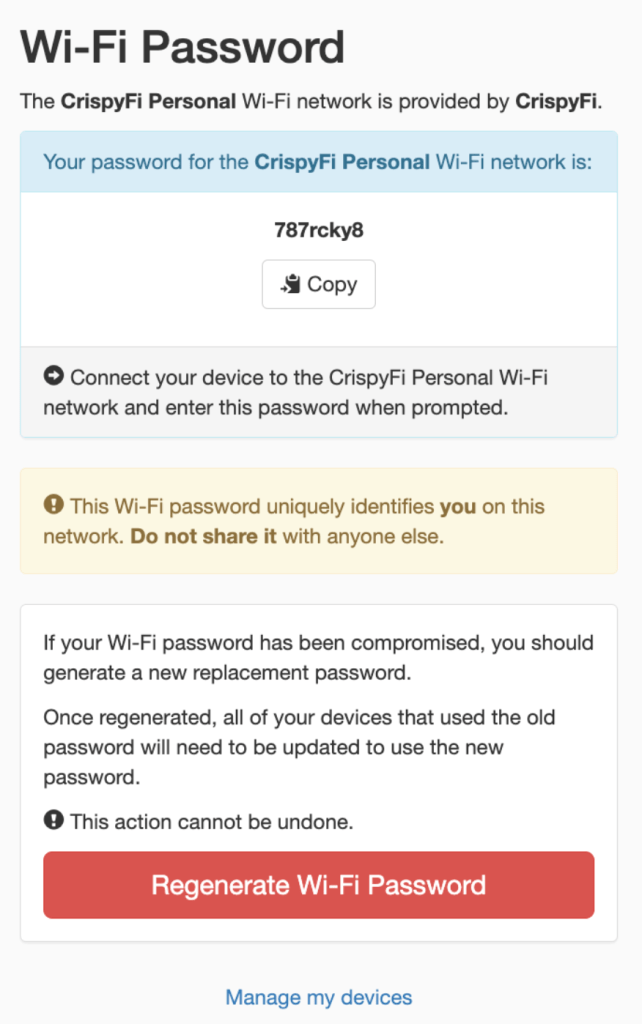
Copy the generated PSK and use it to connect your devices.
Authentication & Policy Logs

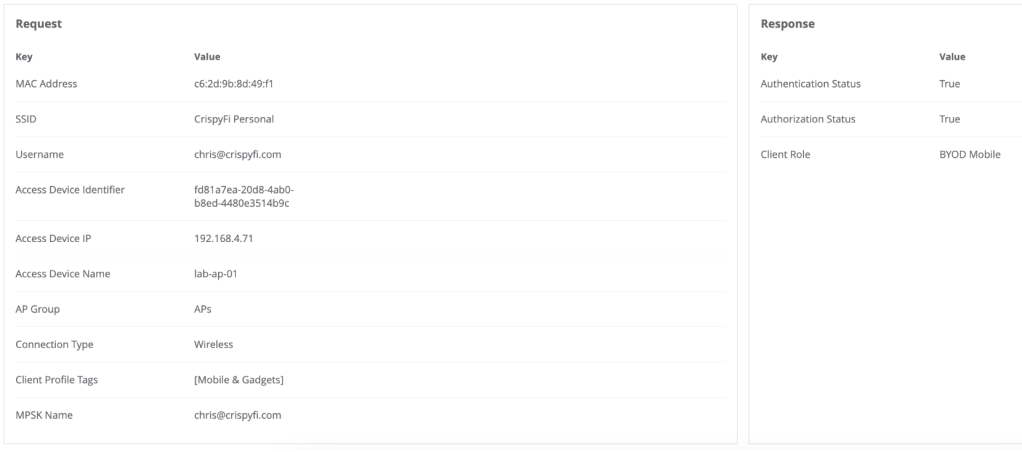
You can view logs and sessions under the Authentication & Policy view.

Notice how the associated username for the device is shown in the logs.

If a user was no longer a member of the configured group, their devices would no longer be allowed to connect.

Clients view

AirGroup

While I didn’t fully configure and test AirGroup for the purposes of the blog, I did enable it along with Personal device visibility and sharing to allow users to view their list of devices and setup sharing.
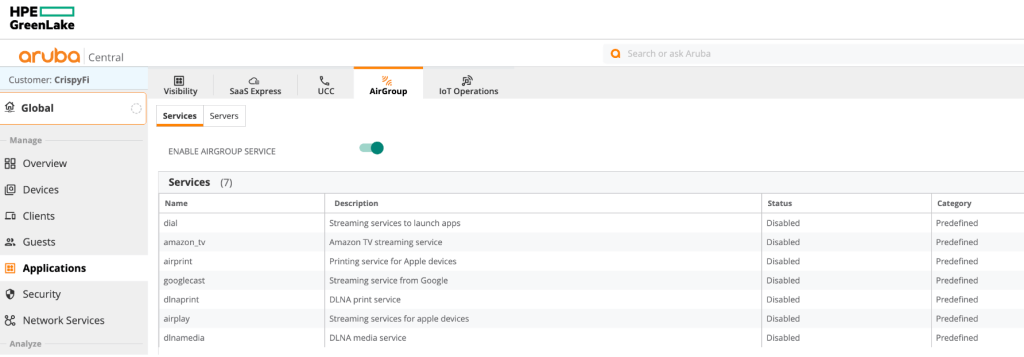
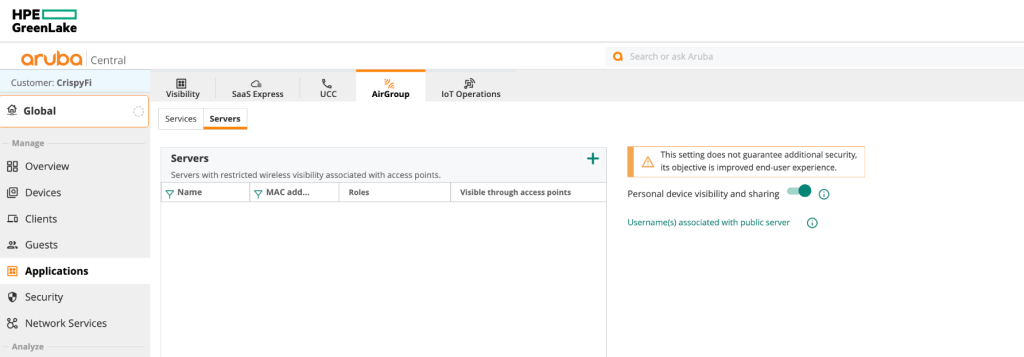
Here is what the Self-Service portal looks like:
Closing thoughts

Personal Wireless Networks are another great addition to the list of available options for getting users and devices connected to Wi-Fi.

As always, there is no ‘one-size-fits-all’ approach and your organisation or customers’ security policy & requirements should be considered to determine whether it is an appropriate solution to use for a particular use case.

For more information on Personal Wireless Networks, check out the webinar below:

Can Hamina Planner replace Ekahau AI Pro as my daily driver?

A real-world evaluation by an everyday commuter.

A significant investment

“We’ve always done things this way”, is the most dangerous phrase in language, or so the quote goes.

I shelled out close to $10,000 (AUD) on Ekahau hardware and software a few years ago, and my current employer did the same, both before the release of the 6GHz capable Sidekick 2.

Needless to say, these were significant investments in a particular toolset, and so was the time spent building experience and workflows using that toolset.

Our customers have also grown accustomed to seeing designs presented in a certain way.

New kid on the block

Enter Hamina. Having recently released their Onsite survey software and matching hardware, they now have a complete solution that could be a viable alternative for us.

From a pure cost perspective, it is a no-brainer. We can easily pay for multiple years of licensing and the 6 GHz capable Oscium Nomad for less than the cost of a new Sidekick 2.

The bigger question is: can it do what we need it to?

Taking it for a spin

After kicking the tyres with the beta version almost 2 years ago, I had an opportunity to use Hamina Planner to create a predictive design for one of our customers.
This was an ideal opportunity to do an internal evaluation and try out all of the new features that have been added.

When you have used any vendor’s technology for a decent length of time, it is easy to see everything through the lens of their way of doing things.
I’ll be the first to admit you can get comfortable with what is familiar, but it’s important to stay as objective as possible during any evaluation.

Rather than looking for feature-by-feature parity, there may be a better way to achieve the same outcome or a completely different philosophy for that aspect of a design.

R is for Requirements

After remembering what was drilled into me in my early consulting days, I started with our requirements.

Here is a list of what would end up as deliverables in one of our typical predictive design reports (funnily enough, these are also all based on requirements!):

  • List the requirements our design was aiming to meet:
    • In-scope vs out-of-scope areas
    • Thresholds for each chart shown
  • Prove that our design met the requirements:
    • Primary and secondary signal strength
    • SNR
    • Data rates
    • Co-channel interference
  • Show how our design would meet those requirements:
    • AP name & placement
    • AP model
    • AP radio configuration (status, transmit power, channel width)
    • Mounting information & antenna direction

Go with the workflow

With that in mind, I set to work on a predictive design as I usually would: Importing and scaling a floor plan, defining in-scope vs out-of-scope areas, setting up coverage and capacity requirements, drawing walls and attenuation areas and finally, placing access points.

The user experience in Planner is lightning fast and I found myself getting less frustrated drawing zones and walls (it often used to take me a couple of attempts to define an irregularly shaped entire building area in AI Pro).

I also love the continuous approach to channel planning, as opposed to re-running it periodically.

It took me a little while to find a few settings, but overall the interface is very intuitive.

Coming to the Party

Before publishing this blog, I shared it with Grant Shelley from Hamina, who heads up Technical Operations for APAC. We exchanged a few emails and to cut a long story short I ended up on a Zoom call with the team in Finland where we had a great conversation about some of my feedback, the philosophy behind the technology and some exciting features that are in development.

It is exactly this sort of community engagement that makes working with the Hamina tools so awesome. I was blown away to even have a conversation about my feedback but never dreamed I’d be talking to the Founder / CEO and Technical director about it over Zoom.

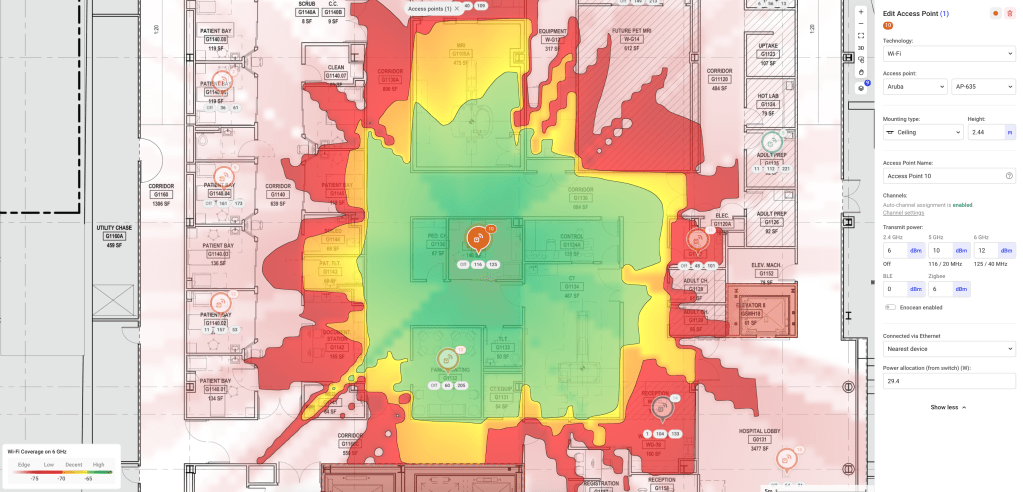
Jussi was even kind enough to offer this screenshot as proof that it didn’t make all of this up!

Home comforts

I take my hat off to the Hamina product development team and the developers themselves for the pace and quality of new features released.

There are a few minor improvements that I would love to see in future updates, and I’m pleased to say that nearly all of them are already in development or under consideration in their feature request portal.

A couple of these were:

  • Being able to crop floor plan images (I’ve been told this feature is nearly ready!)
  • Being able to change the colour for scope zones

Reporting-as-code

On the call with Hamina, we talked about report customisation, and how it might work with something like markdown and variables to customise the presentation of data that is already in the tool.

That way, we could include all of our usual company fluff, customer or project-specific info, and dynamically reference design and configuration parameters without having to re-export a report, and scroll through and edit an external document after making a minor change.

On the subject of reporting, I was given permission to share a sneak preview of what could be the new AP Install Sheet! This will go a long way towards getting APs deployed correctly the first time.

Airtime is of the essence

Another thing we talked about on the call was airtime-based capacity planning.

While there is already client-count-based capacity modelling, it isn’t yet possible to define a list of their bandwidth requirements, and some key client types are missing (e.g. laptop running Windows).

The team assured me that having a Windows client in Planner was high on their to-do list and would be in there very soon.

In most office designs I’ve done recently, Microsoft Teams has been the most critical business application that relies on the wireless network (or at least the easiest for a customer to define).
Understanding the required number of AP radios to achieve the total aggregate throughput for a mix of clients using Teams video according to the bandwidth requirements from Microsoft would be very useful indeed.

While this feature is useful in office-type designs, many engineers are happy with a more rudimentary client count per AP capacity metric. I’m sure this has something to do with the difficulty in nailing down specific device and throughput requirements.

Perhaps total-system throughput or per-AP uplink capacity would be more useful, especially in large public venue designs?

Will it blend?

So, can Hamina Planner replace Ekahau AI Pro as my daily driver? My vote is a resounding yes, with a few downstream changes required.

One of the biggest differences is the way data is presented. Our current workflow involves exporting a .docx file and merging it into one of our standard document templates which includes antenna patterns, key specifications, project background etc.

In my opinion, one of Planner’s killer features (there are many!) is the ability to publish an interactive version of the report that customers can explore.
So perhaps for us, we would include a smaller number of screenshots in our standard report template as a teaser for the full interactive design, accessible via a password-protected link.

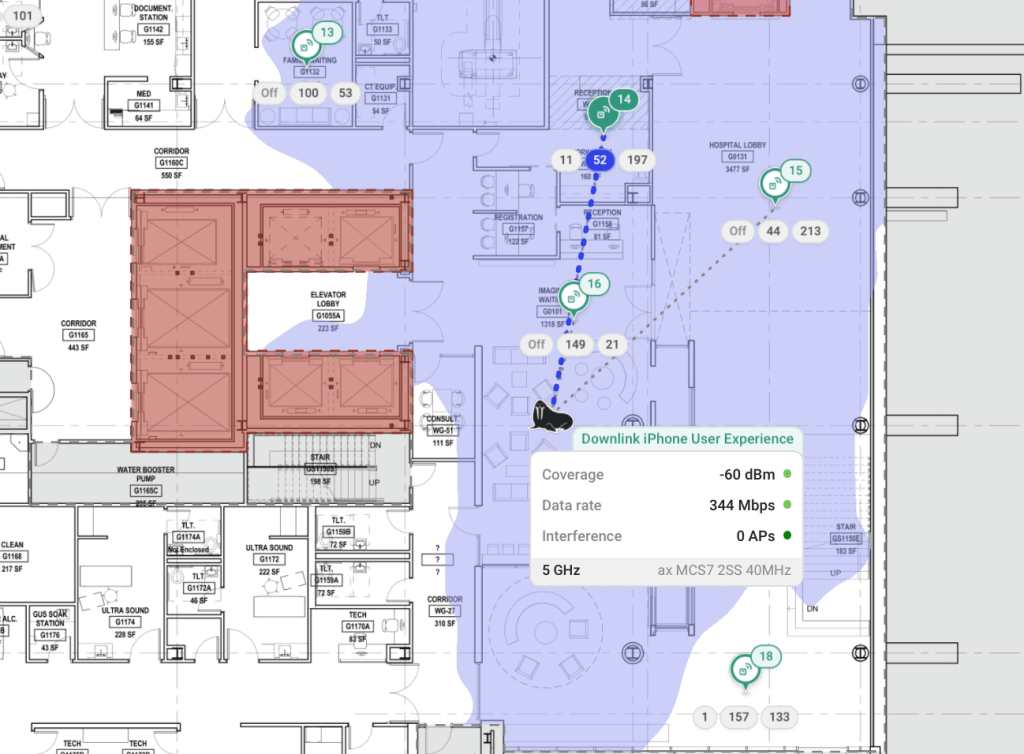
Once customers realise they can move a walrus stick figure man around their office to see how clients might roam (another killer feature) I’m sure they won’t miss their old report full of almost identical-looking images.

Let’s be honest, that is way more fun than reading a PDF full of green floor plans. Who even makes it past the first 10 pages anyway?

Up next

In an upcoming post, I’ll take a similar look at Hamina Onsite.

In the meantime, check out Hamina planner for yourself – you can even do a predictive design for your house with the free version!

https://www.hamina.com/planner

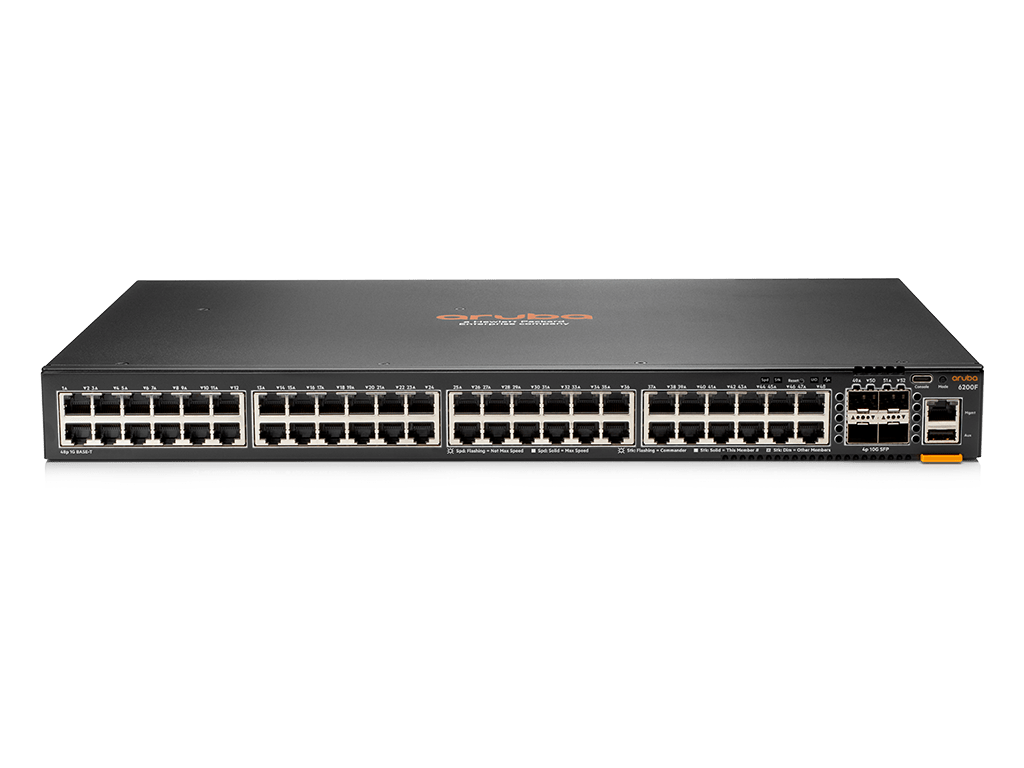
ArubaOS-CX upgrade over USB

Sometimes you just need to upgrade a switch, without wanting to configure it, or waiting for it to boot.

Here is a simple way to upgrade your ArubaOS-CX switch with just a USB-C cable and a USB flash drive.

Procedure

  1. Format a USB flash drive as FAT32
  2. Copy the desired version of firmware onto the flash drive
  3. Insert the flash drive into the USB-A port of the switch
  4. Connect a USB-C console cable to your computer and the switch
  5. From your terminal emulator, select the appropriate COM port and select 115200 bps as the speed
  6. Power on the switch, select 0 at the boot prompt to enter the service console
Looking for SVOS.

Primary SVOS:  Checking...Loading...Finding...Verifying...Booting...

ServiceOS Information:
    Version:          ML.01.07.0001
    Build Date:       2020-09-02 11:50:39 PDT
    Build ID:         ServiceOS:ML.01.07.0001:64dfa8c99840:202009021150
    SHA:              64dfa8c998408ec69d835a070f57aad610bc0383

Boot Profiles:

0. Service OS Console
1. Primary Software Image [ML.10.05.0021]
2. Secondary Software Image [ML.10.05.0021]

Select profile(primary): 0


(C) Copyright 2017-2020 Hewlett Packard Enterprise Development LP

                      RESTRICTED RIGHTS LEGEND
Confidential computer software. Valid license from Hewlett Packard Enterprise
Development LP required for possession, use or copying. Consistent with FAR
12.211 and 12.212, Commercial Computer Software, Computer Software
Documentation, and Technical Data for Commercial Items are licensed to the
U.S. Government under vendor's standard commercial license.

To reboot without logging in, enter 'reboot' as the login user name.

7. Login using the username ‘admin’ (no password required)

ServiceOS login:admin

8. Mount the USB drive and copy the image to the switch

SVOS>mount usb
SVOS>cp /mnt/usb/ArubaOS-CX_6200_10_07_0041.swi /home/

9. Update the primary partition

SVOS>update primary ArubaOS-CX_6200_10_07_0041.swi

10. Boot using the new image

SVOS>boot