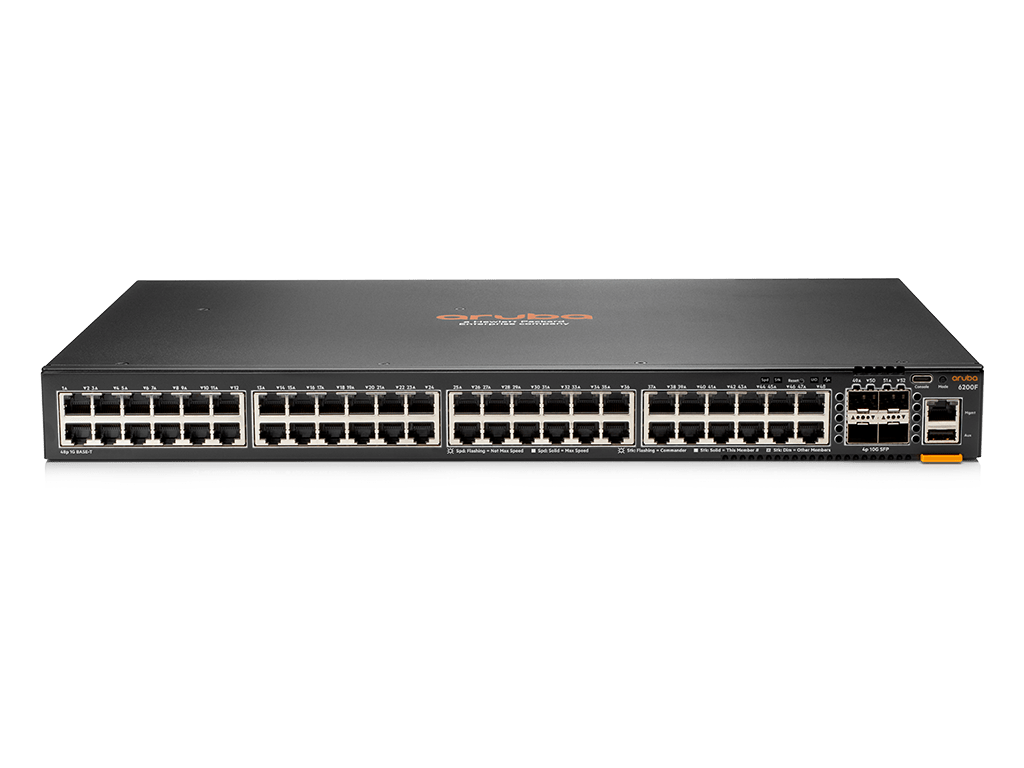
Sometimes you just need to upgrade a switch, without wanting to configure it, or waiting for it to boot.
Here is a simple way to upgrade your ArubaOS-CX switch with just a USB-C cable and a USB flash drive.
Procedure
- Format a USB flash drive as FAT32
- Copy the desired version of firmware onto the flash drive
- Insert the flash drive into the USB-A port of the switch
- Connect a USB-C console cable to your computer and the switch
- From your terminal emulator, select the appropriate COM port and select 115200 bps as the speed
- Power on the switch, select 0 at the boot prompt to enter the service console
Looking for SVOS.

Primary SVOS:  Checking...Loading...Finding...Verifying...Booting...

ServiceOS Information:
    Version:          ML.01.07.0001
    Build Date:       2020-09-02 11:50:39 PDT
    Build ID:         ServiceOS:ML.01.07.0001:64dfa8c99840:202009021150
    SHA:              64dfa8c998408ec69d835a070f57aad610bc0383

Boot Profiles:

0. Service OS Console
1. Primary Software Image [ML.10.05.0021]
2. Secondary Software Image [ML.10.05.0021]

Select profile(primary): 0


(C) Copyright 2017-2020 Hewlett Packard Enterprise Development LP

                      RESTRICTED RIGHTS LEGEND
Confidential computer software. Valid license from Hewlett Packard Enterprise
Development LP required for possession, use or copying. Consistent with FAR
12.211 and 12.212, Commercial Computer Software, Computer Software
Documentation, and Technical Data for Commercial Items are licensed to the
U.S. Government under vendor's standard commercial license.

To reboot without logging in, enter 'reboot' as the login user name.
7. Login using the username ‘admin’ (no password required)
ServiceOS login:admin8. Mount the USB drive and copy the image to the switch
SVOS>mount usb
SVOS>cp /mnt/usb/ArubaOS-CX_6200_10_07_0041.swi /home/
9. Update the primary partition
SVOS>update primary ArubaOS-CX_6200_10_07_0041.swi
10. Boot using the new image
SVOS>boot CrispyFi Blog